 October 5, 2026
 3 min read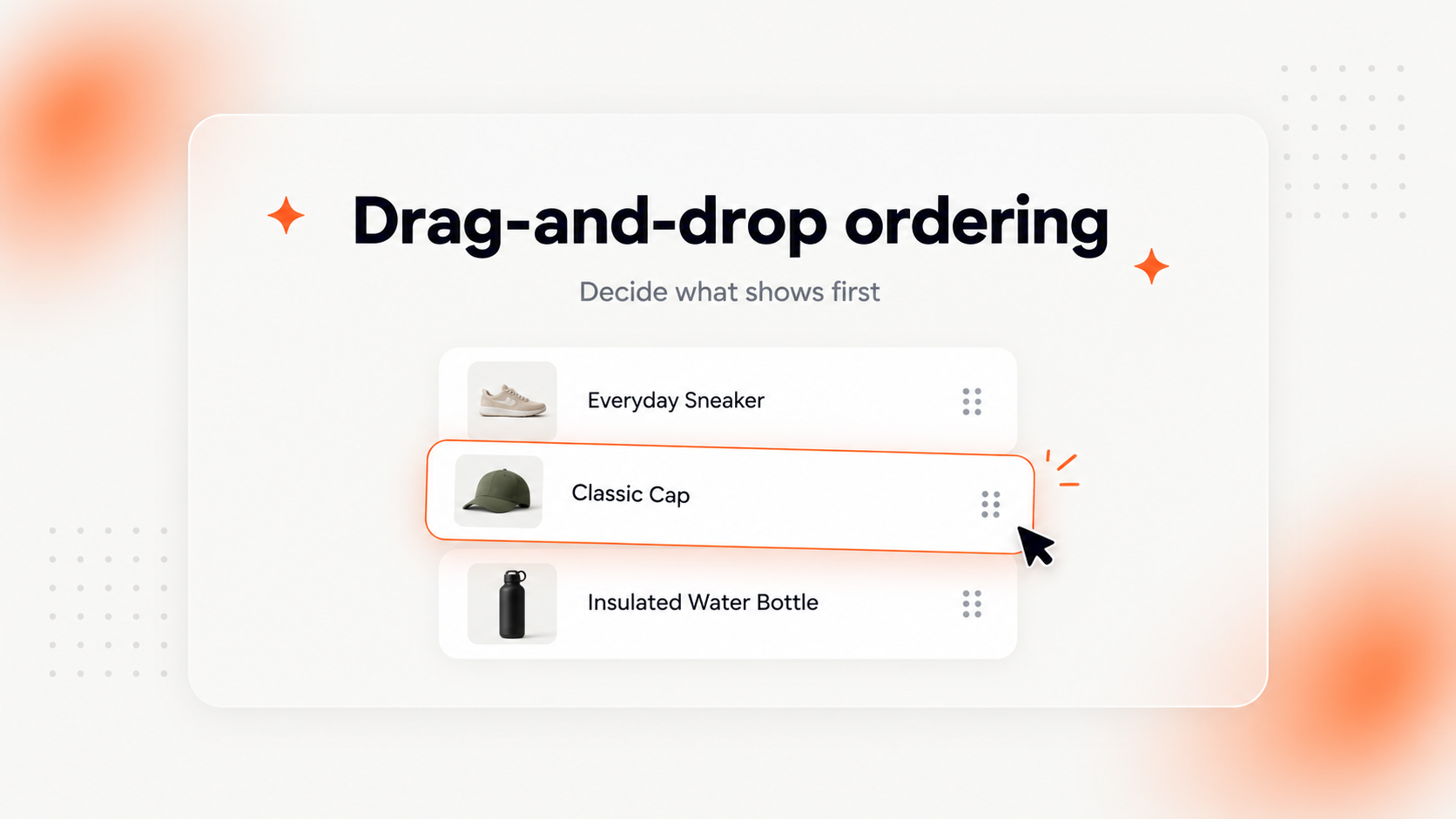
Reordering things in my.clerk.io just got much quicker.
We’re replacing the up and down arrow buttons with drag-and-drop ordering across my.clerk.io. Instead of clicking an arrow repeatedly to move something through a list, you can grab it and place it exactly where you want it.
The same interaction across my.clerk.io
We’re bringing the same drag-and-drop experience to:
- Data Modifiers
- Chat initial suggestions
- Content → Design and Insert facets
- Search rules suggestions
- Recommendations accessories
- Include/Exclude lists
- Merchandising campaign rules
- Facet editor tables
Once you’ve used it in one part of my.clerk.io, the interaction works the same way everywhere else.
More control over hand-picked products
There’s also a new option for Merchandising campaigns.
Hand-picked products can now be reordered, giving you direct control over the sequence in which shoppers see them. If you want one product first, another second, and another further down the list, just drag them into that order.
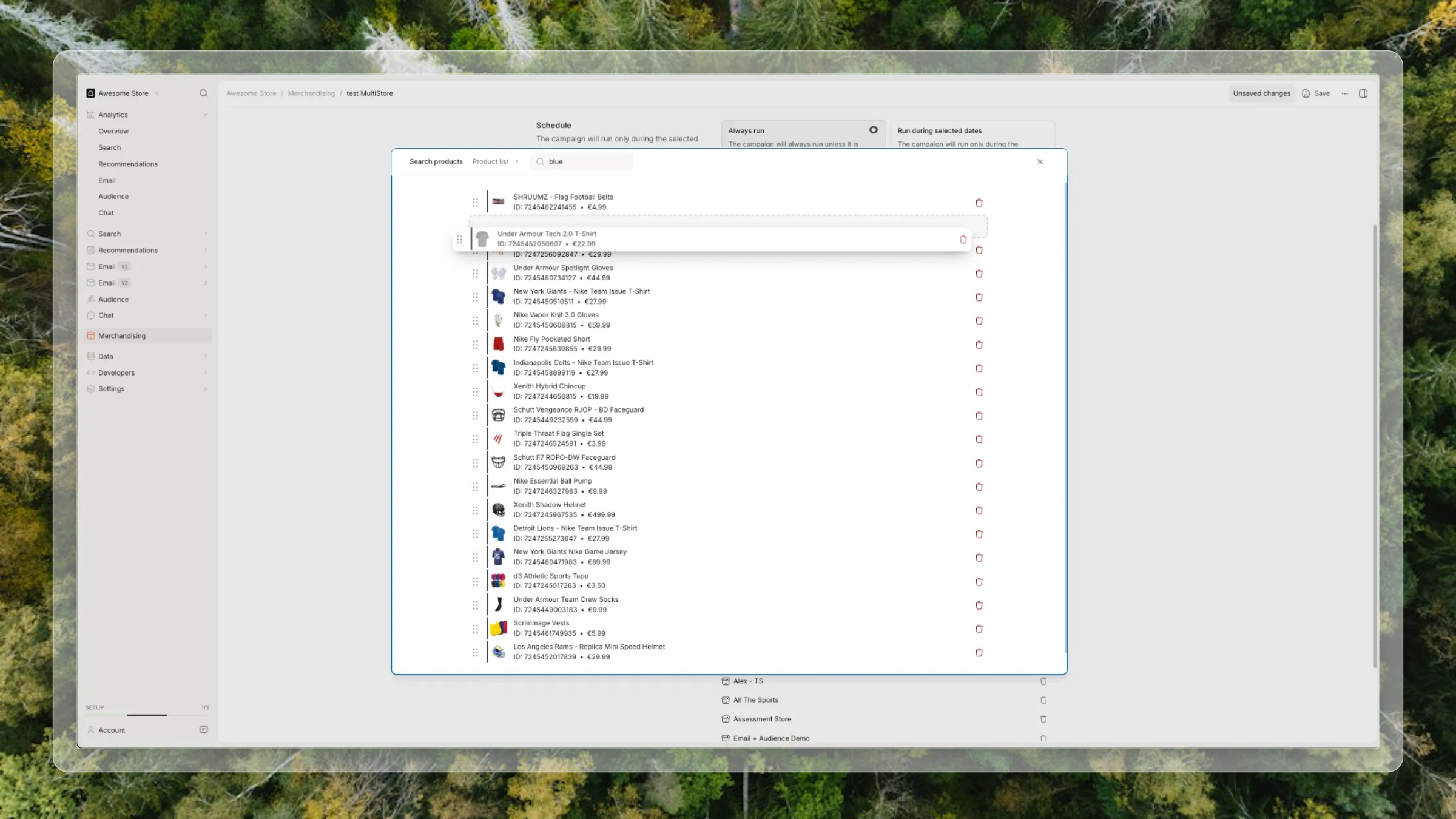
Drag-n-drop products to decide what should show first. You can do this by clicking on “Merchandising” in the left panel, then setting a rule and then pin to top to order your products.
Keyboard-friendly too
Drag-and-drop isn’t limited to a mouse.
When a row is focused, you can use Alt + ↑/↓ to move it up or down. Screen-reader announcements tell you when an item has moved and where it is in the list.
Less clicking, more control
This is a small change you’ll notice in a lot of places. Reordering long lists takes fewer clicks, you can see exactly where an item will land before moving it, and Merchandising campaigns now give you control over the order of hand-picked products.
Look for the new drag handles across my.clerk.io.