 October 5, 2026
 3 min read
You can now edit design variables, such as headlines, button text and images, directly inside the email preview in my.clerk.io.
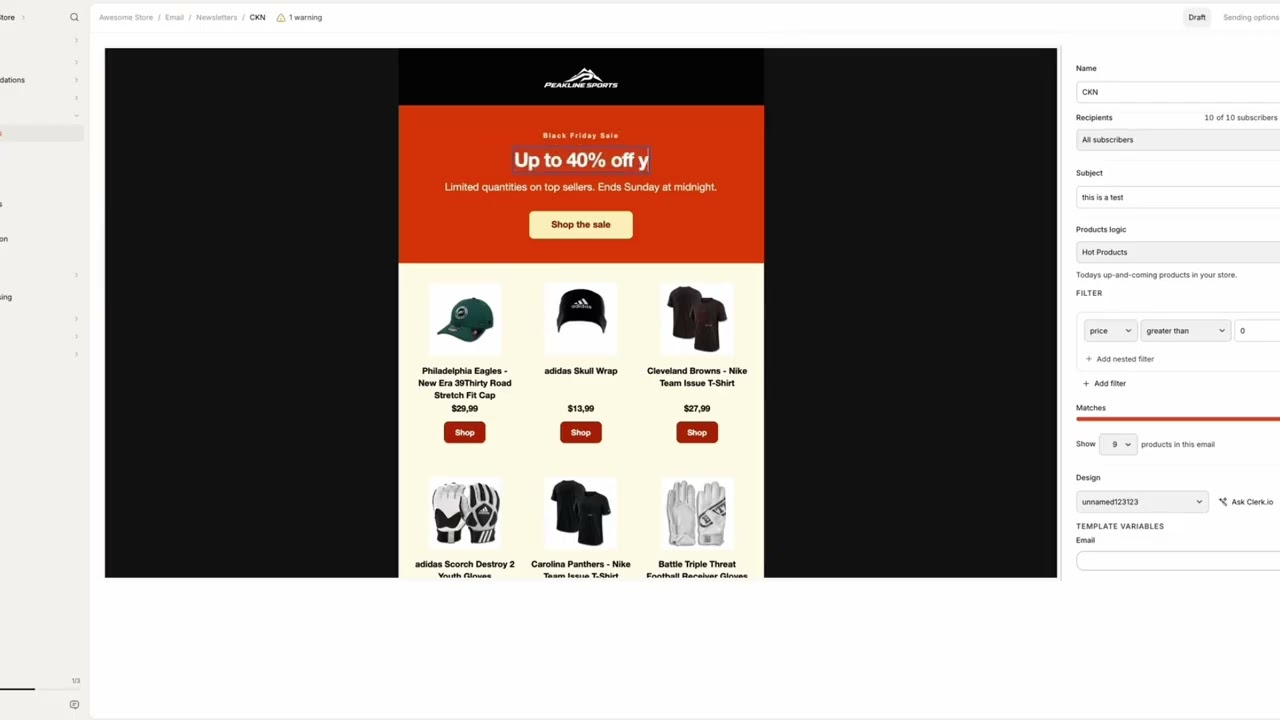
Instead of finding the right variable in the sidebar, making your change and checking the preview, you can click what you want to change and edit it right where you see it.
Edit text right in the email
Want to change a headline or the text on a CTA button?
Click the text directly in the preview and start typing. Hit Enter when you’re done, or Escape to cancel the change.
The preview updates as you edit, so you can immediately see how your new copy looks in the email.
Swap images from the preview
Images work the same way.
Hover over an editable image and click Change image. You can then choose a replacement from your media library, and the new image will appear directly in the email preview.
This makes it much easier to update hero images, campaign graphics and other image variables without searching for the corresponding setting first.
What you see is what you edit
Previously, changing a design variable meant finding the right field in the sidebar and then checking the preview to see what that field controlled.
Now, you can start with the email itself.
See a headline you want to change? Click it.
Want a different CTA? Click the button text.
Need another image? Click the image.
The preview re-renders as you make changes, so you can see the actual email throughout the process.
Your email designs still work the same way
This update is for editing design variables, rather than changing the underlying email design itself.
Your existing variable settings and saving flow stay the same. We’ve simply made those variables much easier to edit by bringing the editing experience into the preview.
So the next time you’re preparing an email campaign, you can spend less time looking for the right setting and more time working directly on the email your customers will receive.