 September 8, 2026
 2 min read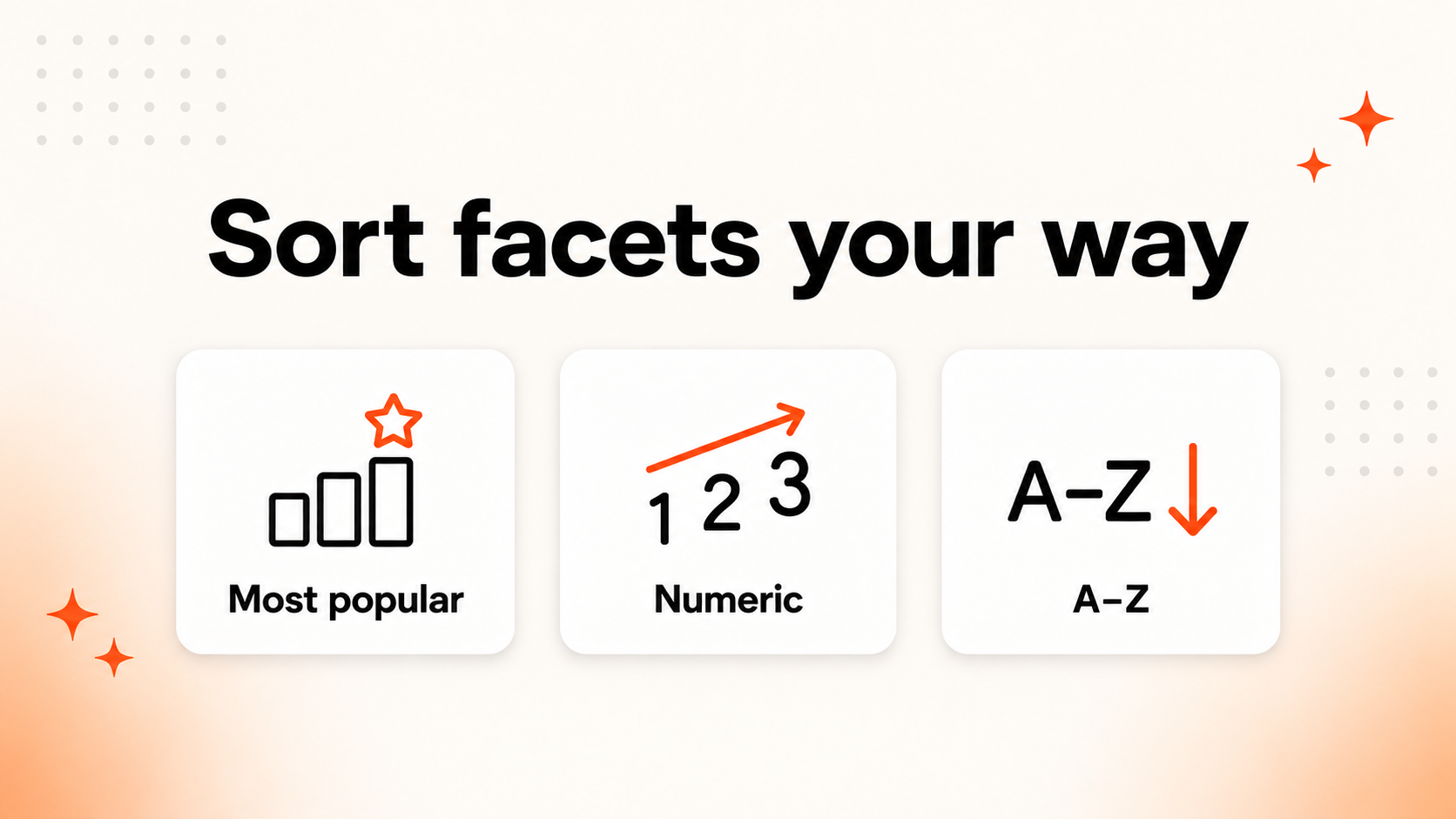
Facets help shoppers narrow a large product range into a manageable set of choices. Now, you can also decide how the values inside each facet are ordered directly from MyClerk.
The new setting gives you three ready-to-use sorting options: Most Popular Products, Numeric, and A–Z.
Choose the right order for each facet
Different attributes make sense in different orders. Alphabetical sorting works well for names, while number-based attributes are more useful when they follow their numeric value.
You can now select the appropriate sorting option for every configured facet:
- Most Popular Products sorts facet values based on product popularity.
- Numeric sorts number-based values numerically rather than treating them as text.
- A–Z sorts string values alphabetically, making it a natural choice for attributes such as categories.
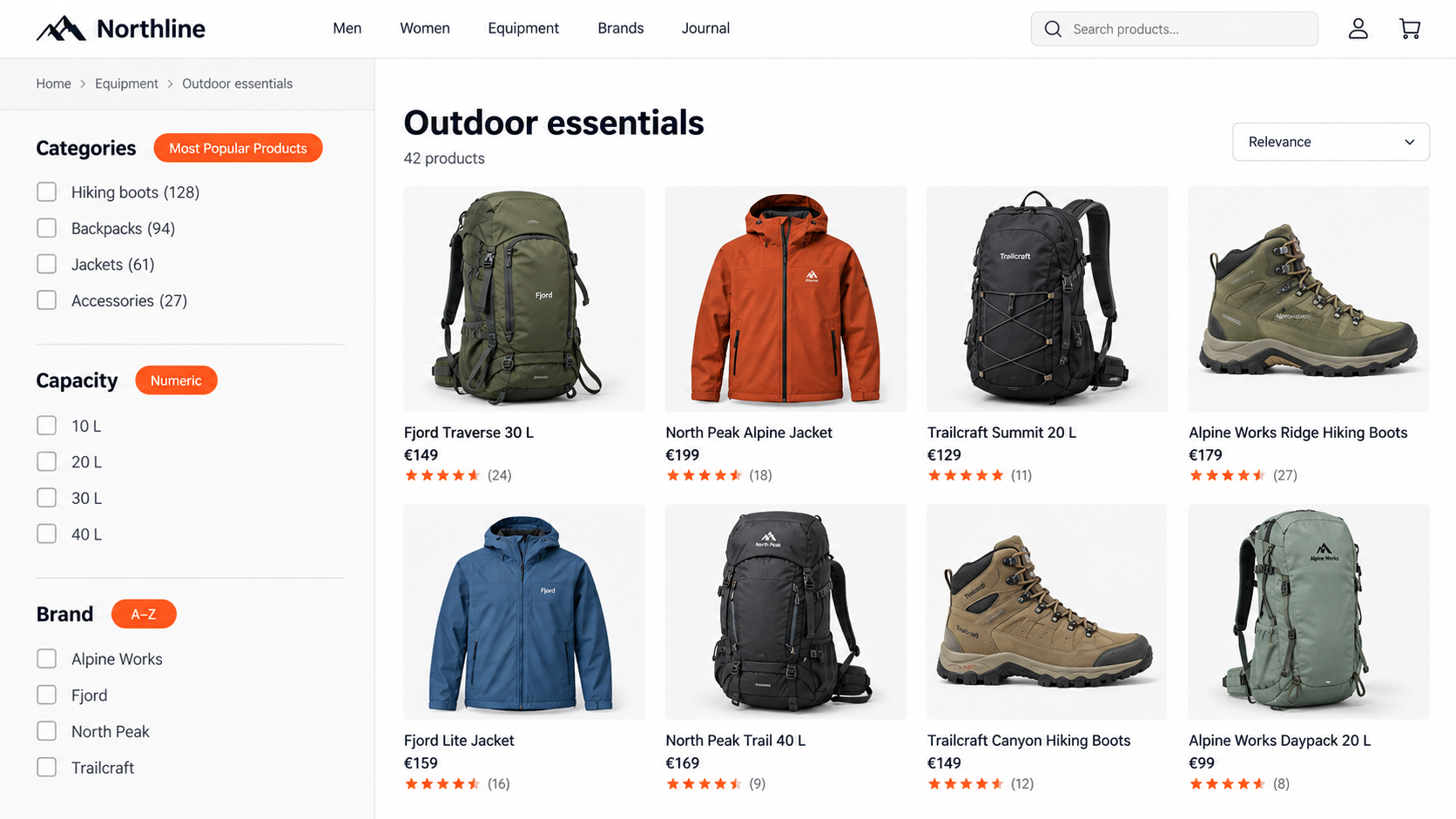
Each facet can use the sorting method that best matches its values—from popular categories to numeric capacities and alphabetical brands.
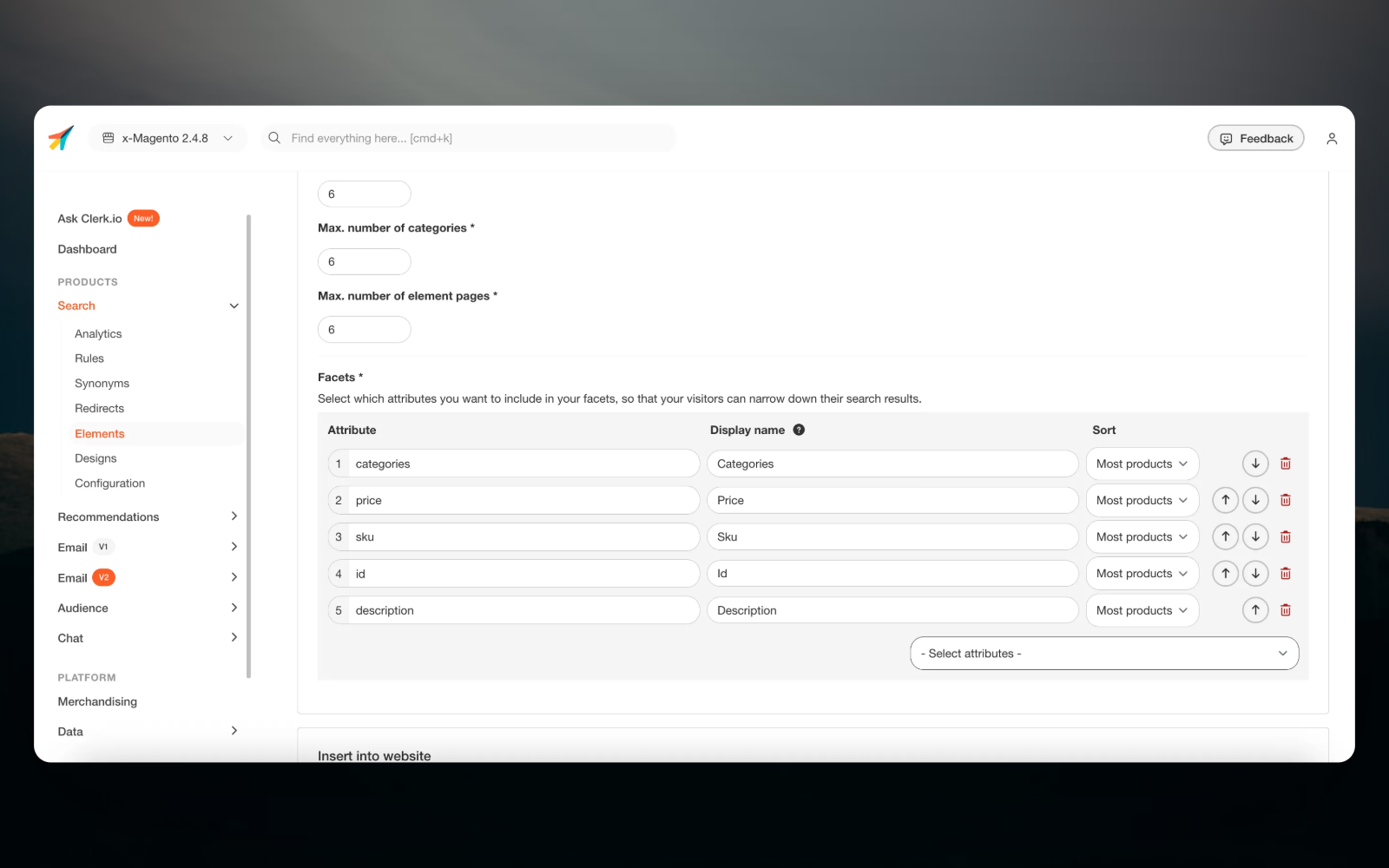
Choose a sorting method for each facet directly in the element settings in MyClerk.
A clearer browsing experience for shoppers
The order of facet values affects how quickly shoppers can find the option they need.
For example:
- A category facet can use A–Z so shoppers can scan familiar category names in a predictable order.
- A number-based attribute can use Numeric so values follow their actual numerical sequence.
- A facet with many possible values can use Most Popular Products to bring values connected to popular products higher in the list.
Each facet can use the option that best matches its data and the way customers browse your catalog.
Configure sorting without changing your implementation
Facet sorting is controlled in the same area where you already select facet attributes and edit their display names.
There is no need to rearrange values manually. Choose an option from the Sort menu for each facet, save the element, and Clerk.io applies the selected order.
Where to find it
Go to:
MyClerk → Search → Elements → Facets
Open the relevant element and use the Sort menu beside each facet to select Most Popular Products, Numeric, or A–Z.
With facet sorting available directly in MyClerk, you have more control over how shoppers explore your catalog—and a faster way to make every filter easier to use. 🚀