 August 27, 2026
 4 min read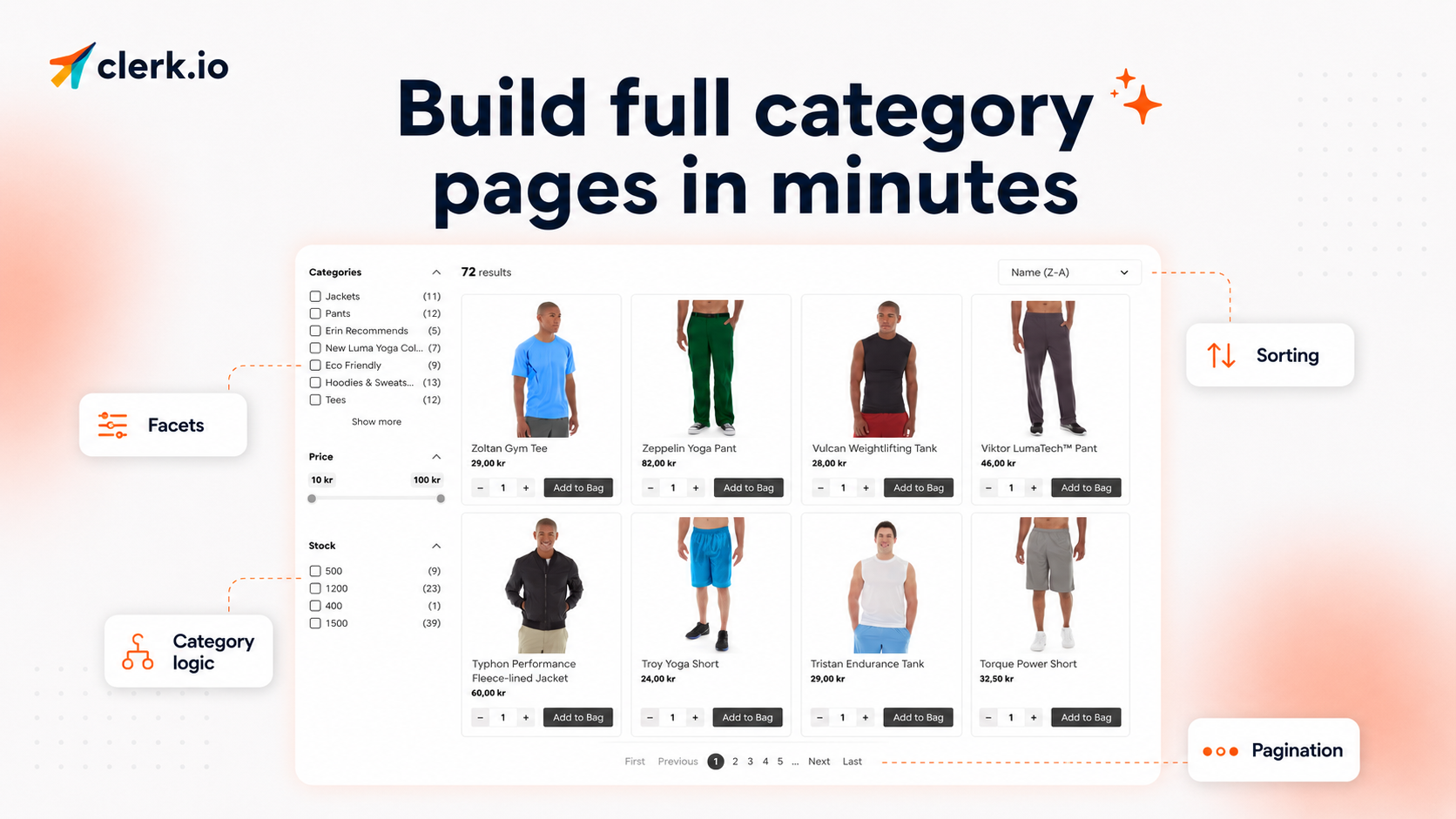
You can now build and add a complete category page to your website directly from Clerk.io.
Category pages are some of the most important pages on your webshop. They help shoppers browse your range, and they can also act as landing pages for people discovering your store through Google, organic search, and LLMs.
But getting shoppers onto the page is only half the job. What happens once they arrive depends on which products they see first, how easy it is to filter the range, and whether the page reflects what matters to your business right now.
The new Full Category Page design brings the core parts of a category or collection page together in one element, including:
- Facets
- Sorting
- Pagination
- Clerk.io recommendation logic
That means your category pages can do more than simply display the products assigned to a collection. You can decide how products are ranked using Clerk.io logics such as most popular in the category or newest products in the category, while still giving shoppers the filters and sorting options they expect.

A smarter category page, without a custom build
The main advantage is not that Clerk.io gives you another category page builder.
It gives stores already using Clerk.io Search and Recommendations a fast way to create a more intelligent category experience using the same product data and recommendation logic they already work with.
For example, a category page can prioritize:
- The most popular products in that category
- The newest products in that category
- Other Category logics available in Clerk.io
At the same time, shoppers can narrow down the results with facets, change the sorting, and move through larger product ranges with pagination.
For stores with basic native category pages, this gives you much more control over how products are presented.
And for platforms where a complete category page does not come ready-made, it can replace work that would otherwise require a custom implementation and developer time.
Use Merchandising to control what shoppers see
Building the page is only the start. With Clerk.io Merchandising, you can control which products shoppers see first while keeping the page powered by the product data and recommendation logic you already use.
For example, you can:
- Promote high-margin products by moving them higher
- Move low-stock or out-of-stock products down
- Promote discounted products for the duration of a sale
These rules can be applied across your category pages, so you do not need to manually rearrange products one collection at a time.
This gives each category page a better chance to support your current business priorities while remaining useful and easy to browse for shoppers.
Set it up in a few clicks
You’ll find the new setup under MyClerk → Recommendations.
Start in Designs and choose the new Full Category Page standard design. The category page structure is already included, and you can customize the design in the same way as your other Clerk.io designs.
From there:
- Go to Elements and create a new element.
- Select one of the Category logics.
- Turn on Facets.
- Set your Limits, using the same setup as Omnisearch.
- Choose which facets you want shoppers to see.
- Inject the element into your platform.
That’s it. What previously could require following implementation guides or building a category experience from scratch can now be set up in a few minutes.
Give shoppers more control over how they browse
Facets let shoppers narrow down a category using the filters that matter for your catalog, such as category, price, stock, brand, size, or other product attributes you choose to display.
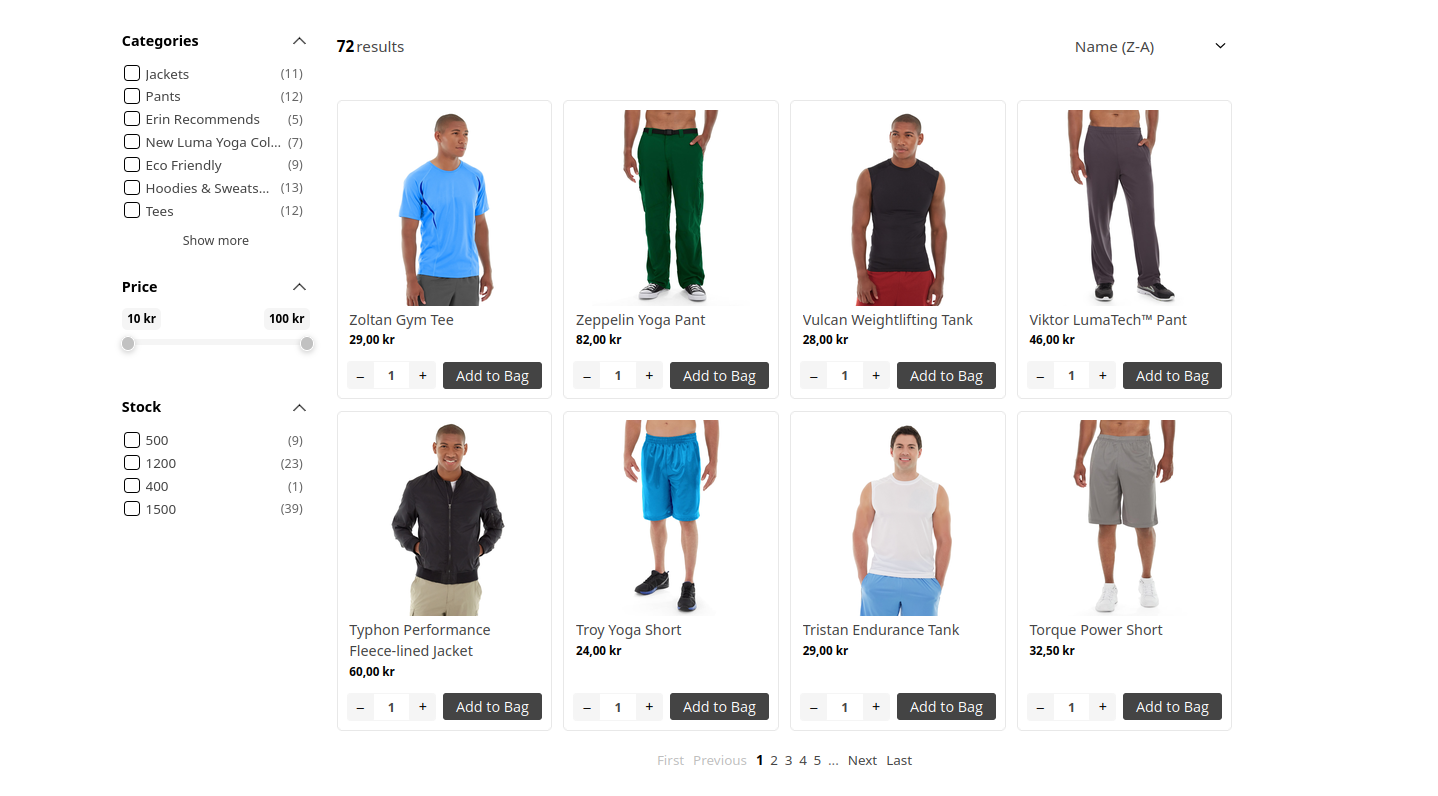
Sorting gives them another way to browse the same product set, and pagination handles larger categories.
All three are part of the Full Category Page design, so they can be managed together instead of built as separate pieces.
Fits into the Clerk.io setup you already use
If you already use Clerk.io for Search and Recommendations, the Full Category Page sits alongside the same tools and logics.
You can create the page, choose how products should be ranked, customize the design, and manage the browsing experience from MyClerk.
For stores that currently rely on a very basic category page, this is a much quicker route to a richer product discovery experience.
Where to find it
Go to:
MyClerk → Recommendations → Designs → Full Category Page
From there, create your element, choose your Category logic, configure facets and limits, and inject it into your site.
Your Clerk.io-powered category page is ready. 🚀